What is a workspace, and how should my team use it?
A workspace is your company's one shared filing cabinet — venues, event spaces, events, diagrams, standard setups and contacts, visible to every member. Roles gate administration, never visibility; your plan sets how many editors it holds.
When you sign up, EventDiagram creates a workspace named after you or your company. It is the top of the tree: every venue, event space, event, diagram, standard setup and contact you add lives inside it, and everyone you invite sees all of it. Think of it as the one filing cabinet your whole team works out of — not a folder per person.
A workspace is one shared filing cabinet. Everything in it is team property. Roles decide who can manage billing, venues and people — never who can see what.
What lives in a workspace
The tabs across the top of the app are the contents of your workspace:
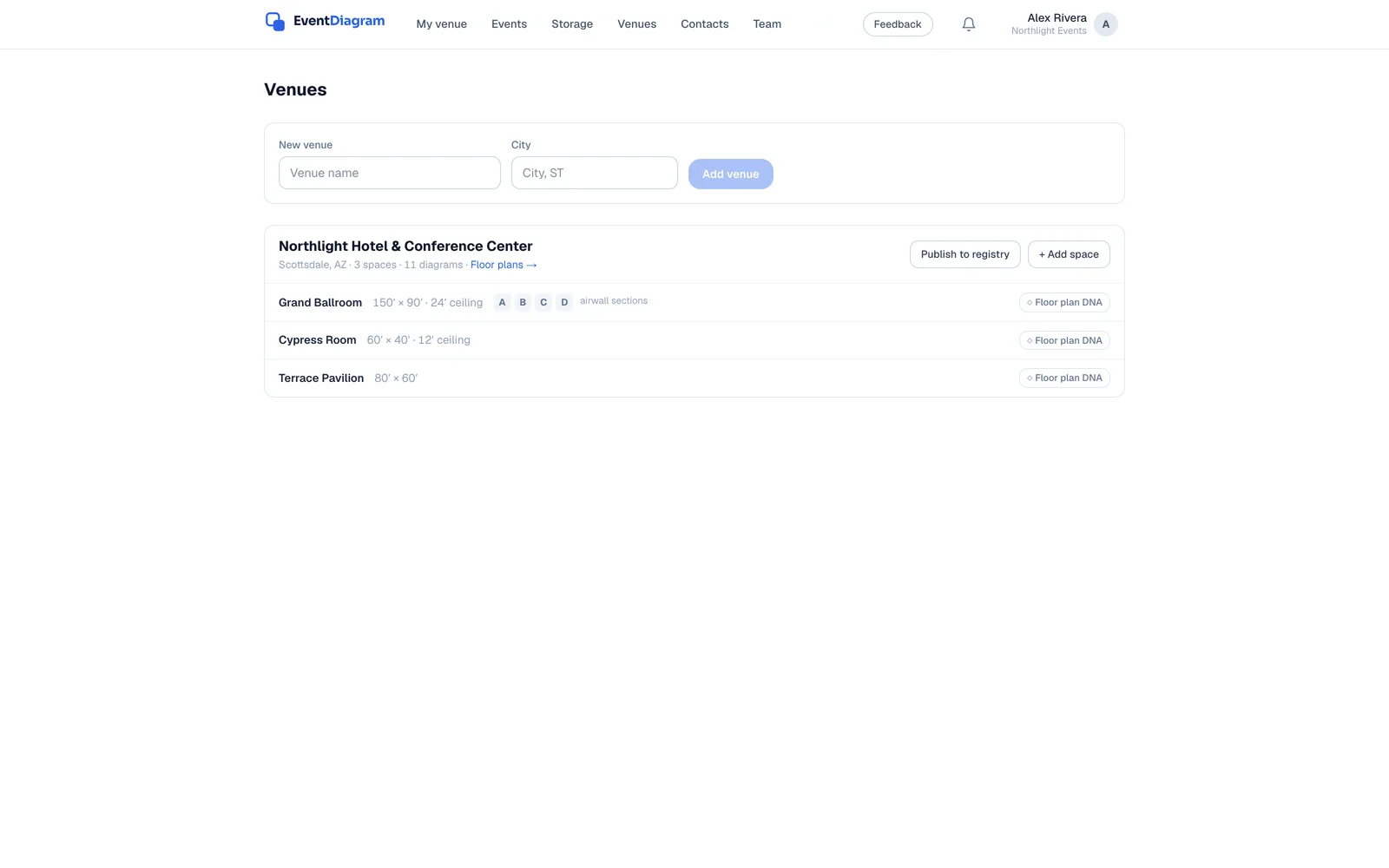
- Venues — the physical places you work in, each with its event spaces and airwall sections. A venue you set up once serves every event you ever hold there.
- Events — the bookings. Every diagram belongs to an event, so a wedding's ceremony and reception plans stay together.
- Storage — every diagram in the workspace, flattened by what was touched last, plus saved layouts, attendee lists and event documents.
- Contacts — the clients, planners and vendors you share plans with.
- Team — the people who can sign in and edit.
Underneath those sit the settings that apply to everyone at once: the workspace name and logo, display units, the plan, and any API keys you mint for your own AI.
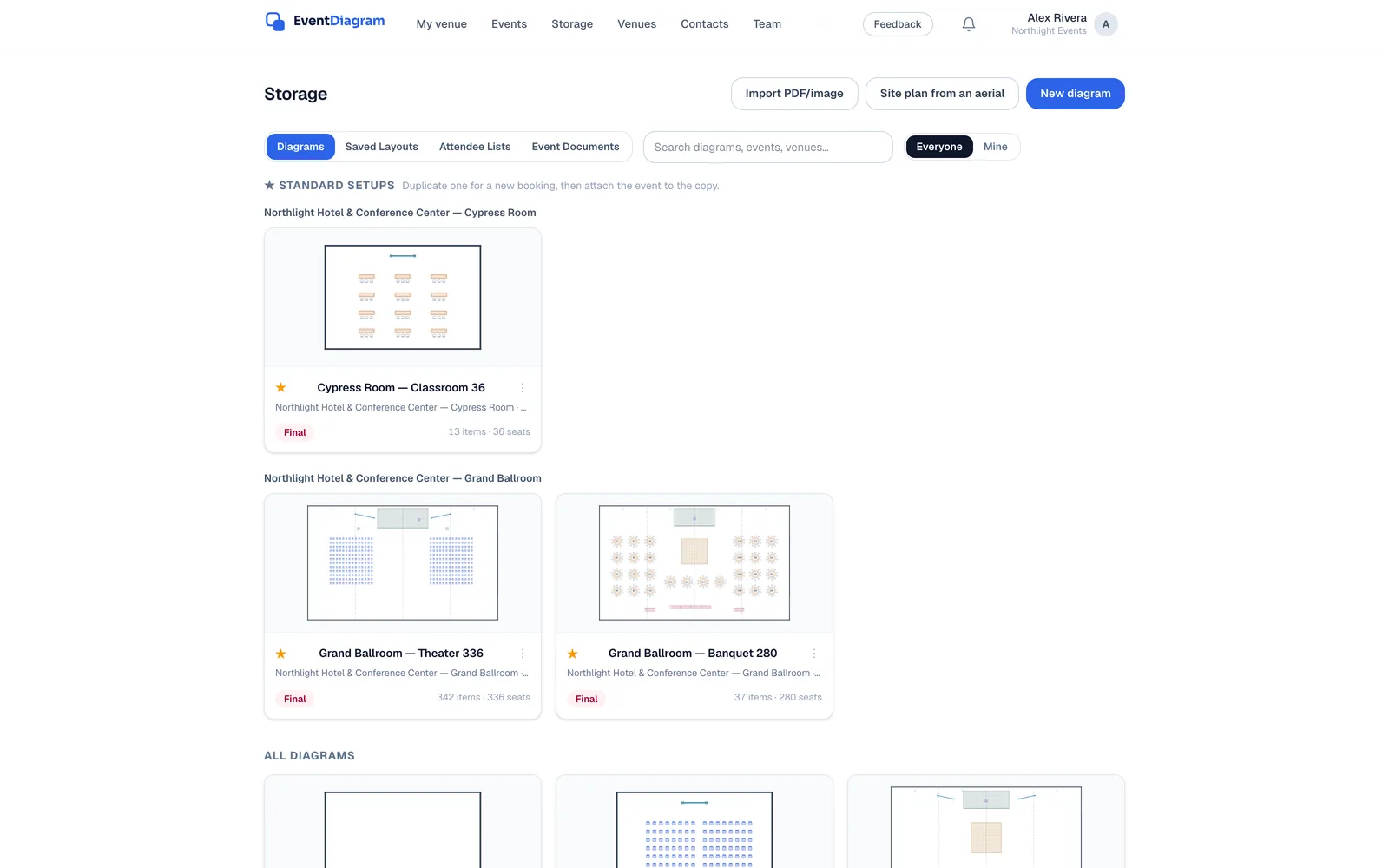
Everyone sees everything — on purpose
There are no private diagrams. A general manager can open any plan their team drew; a banquet captain can pull tonight's setup without asking who made it. Two things keep that from turning into noise:
- Every diagram carries a byline — who drew it — and
Storagehas anEveryone/Mineswitch. It is a lens, not a permission: switching to Mine hides nothing from anyone else. - Every diagram carries a status — draft, in review, approved, final — so “not ready yet” is a label, not a hiding place.
Owners, admins and members
Three roles, and they differ only in what they can administer. Nobody has a role that lets them see more or less of the work.
| Member | Admin | Owner | |
|---|---|---|---|
| See every venue, event and diagram | ✓ | ✓ | ✓ |
| Create and edit diagrams, events, share links, exports | ✓ | ✓ | ✓ |
| Invite people, change member ↔ admin roles, remove members | — | ✓ | ✓ |
| Add, edit and delete venues and event spaces | — | ✓ | ✓ |
| Delete an event (and the diagrams in it) | — | ✓ | ✓ |
| Rename the workspace, change its logo and units | — | ✓ | ✓ |
| Mint API keys | — | ✓ | ✓ |
| Make or remove another owner; remove an admin | — | — | ✓ |
| Plan and billing | — | — | ✓ |
A workspace always keeps at least one owner, so the billing contact can never vanish: the last owner cannot step down or leave until someone else is made an owner. Anyone else can leave from the Team page at any time.
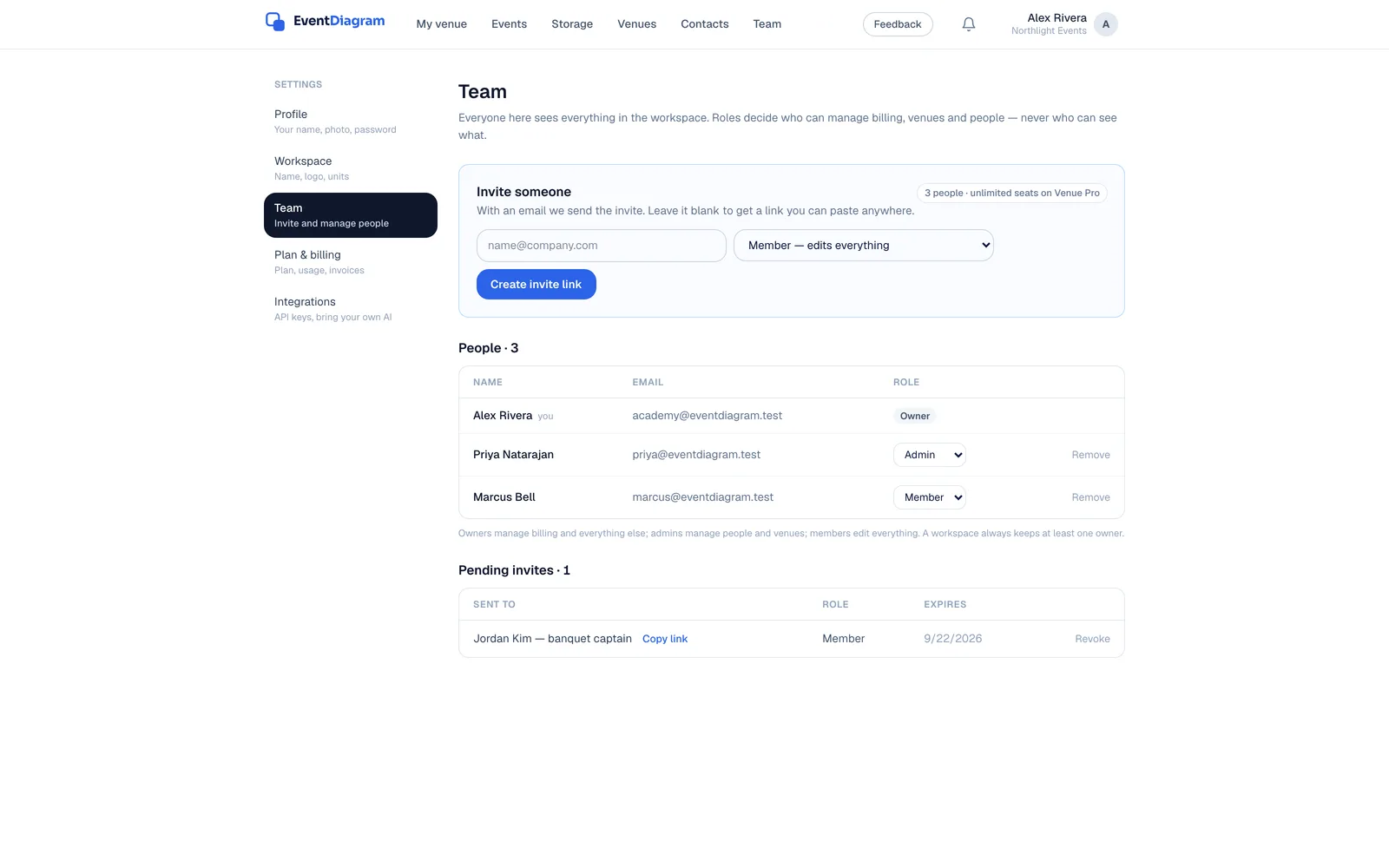
Inviting your team
- Open
Team(top navigation, orSettings → Team). - Under
Invite someone, choose the role —Member — edits everythingorAdmin — also manages people and venues. - Enter an email and press
Send invite, or leave it blank and pressCreate invite linkto get a link you can paste into Slack, a text, or a work order. - Each link works once and lasts 14 days. Pending invites appear below the people list, where you can copy the link again or revoke it.
A pending invite holds a seat until it is accepted or revoked, and the meter next to the invite form counts it — so you always know where you stand before you hit the wall.
Seats: how many people can edit
Everyone in the Team list is an editor — they sign in, draw and change things. The plan sets how many editors a workspace holds. That is the whole difference between a one-person plan and a team plan; nothing else about the workspace changes.
| Plan | Editors | Built for |
|---|---|---|
| Free | 1 | Trying it on one event |
| Solo | 1 | One planner, unlimited diagrams |
| Pro | 3 | A small team drawing together |
| Team | Unlimited | The whole company on one workspace |
| Venue · Venue Pro | Unlimited | A property and everyone who works it |
If your second person needs to draw, that is the moment to move from Solo to Pro. If your fourth does, Team carries unlimited editors, and so does every venue plan — each already includes 3D, your branding on exports, version history and attendee import, so the only thing you are buying going up the ladder is room to grow. Current prices are on the pricing page.
Outsiders never need a seat
Seats are for people who draw. Everyone else — the couple, the client's marketing director, the fire marshal, the rental crew — gets the plan without joining your workspace:
- Share links open the real diagram in any browser, to scale and in 3D, with no account. You choose view, comment, or take a copy.
- Event collaborators are added by email on the event itself, with View or Edit access to the whole event or just its diagrams. Someone who already uses EventDiagram sees it under
Shared with youon their own dashboard, in their own workspace. - Contacts keep those people on file so the next share is one click.
Share links and collaborators are free on every plan, including Free. Reach for a seat only when someone on your side needs to open the editor.
One workspace or several?
Almost always one. The workspace is your company; the things that vary — buildings, clients, jobs — are venues and events inside it. A few common shapes:
A hotel, conference center or single venue. One workspace, one venue, all of its event spaces. Sales, catering, banquets and operations are all members; the general manager is an owner. Standard setups (the starred layouts in Storage) are your house banquet, theater and classroom, and a new booking starts from one of them.
An A/V, production, rental or catering company. One workspace for the company. Every venue you load into goes under Venues — add it yourself, or start from a venue already in the EventDiagram directory. Every job is an event, so the Whitmore wedding at the Northlight and the sales kickoff at the convention center sit side by side in one Events list, each with its own diagrams. Your project managers and drafters are members; the owner or ops lead is an owner. The venue's banquet manager and your client are collaborators or share-link viewers, never seats. You do not need a workspace per venue or per client.
An independent planner. One workspace, usually one seat. Venues come from the directory or from what a venue shares with you; events are your clients.
A group with several properties. One workspace holding several venues: a chain of three hotels is one company with three buildings, and its people move between them. Venue plans are priced per property, so add each building under Venues and the plan quantity follows. Per-property roles and roll-up reporting are an Enterprise conversation — ask us.
Working across companies
Sometimes two companies really do share the drawing work — a venue and the production partner it uses for every conference, say. The venue's owner can invite the partner's lead as a member of the venue's workspace. That person then belongs to two workspaces — their own company's and the venue's — and switches between them from the menu under their name. Each workspace keeps its own venues, events and diagrams; nothing bleeds across.
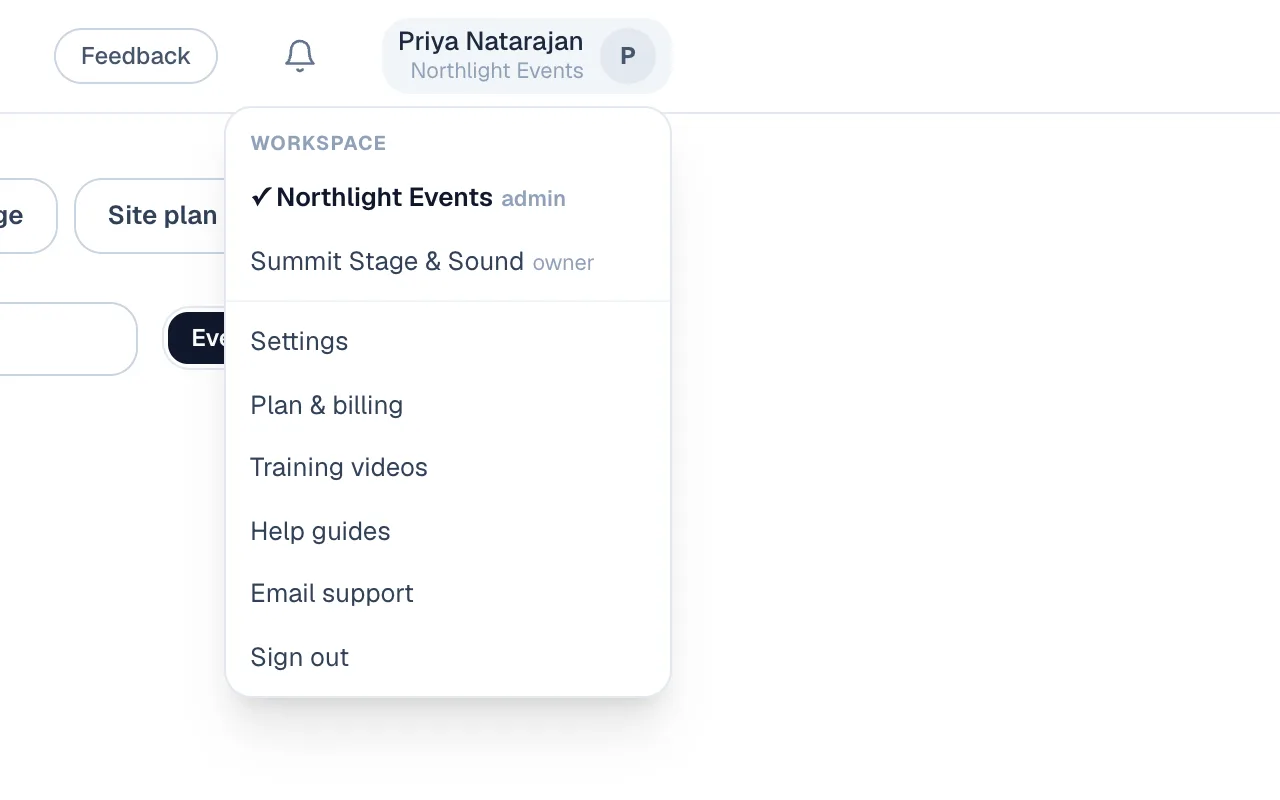
That invited seat counts against the venue's plan, not the partner's. If the partner only needs to see the venue's plans, an event collaborator or a share link does the same job for free.
Workspace-wide settings
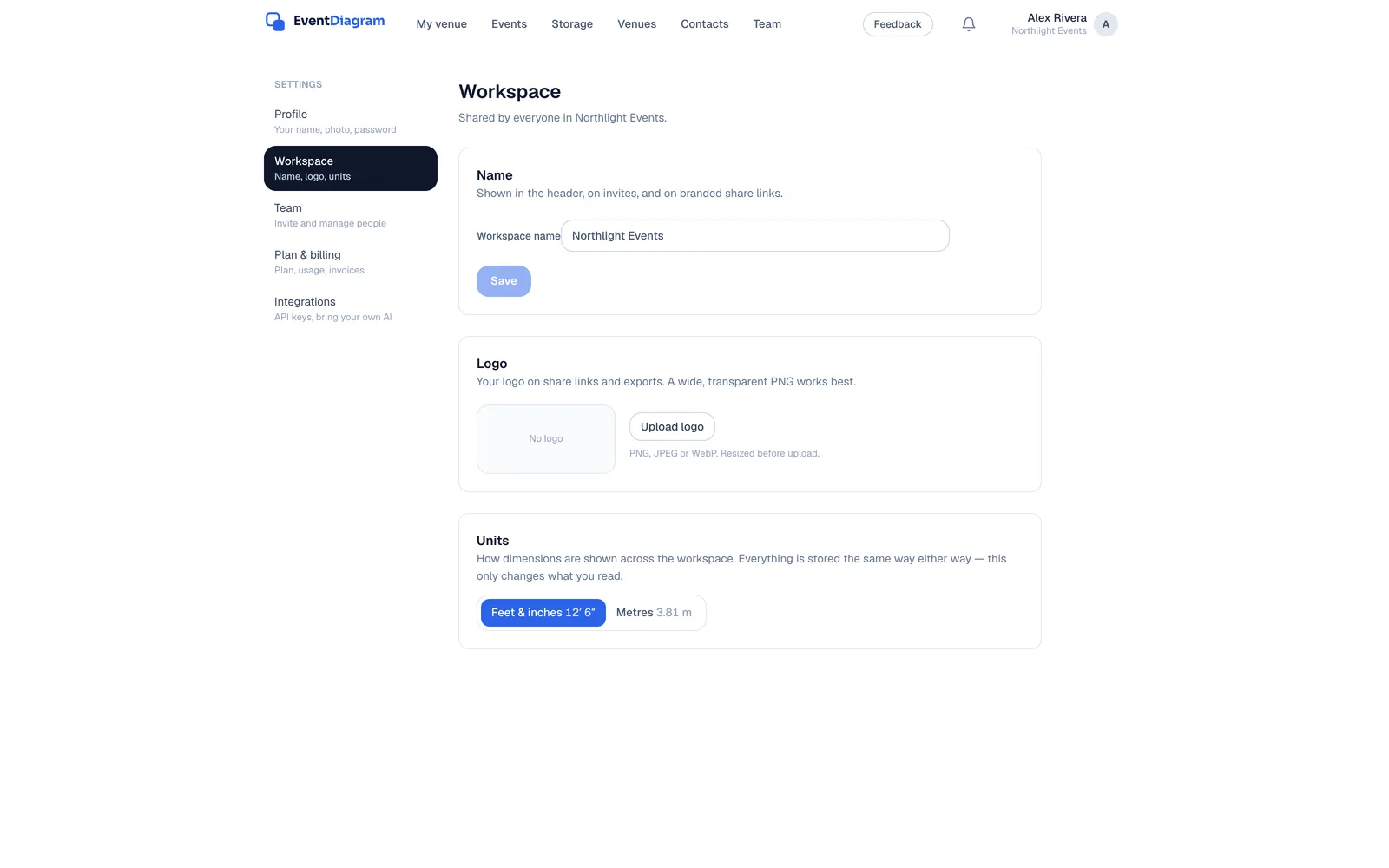
Under Settings → Workspace, owners and admins set the things that apply to every member:
- Name and logo. The name shows in the header, on invites and on branded share links; the logo goes on share links and exports on Pro and above.
- Units. Imperial or metric, for everyone at once. Every dimension is stored in feet either way — this is only how it is displayed.
- Plan & billing. The plan, this month's AI usage, invoices and the plan comparison. Owners only.
- Integrations. API keys, so Claude, ChatGPT or any MCP client can work inside this workspace with your own AI subscription.
Related
Updated September 8, 2026 · 16 articles in the knowledge base