Guest lists & seating
Seating chart software that counts every chair
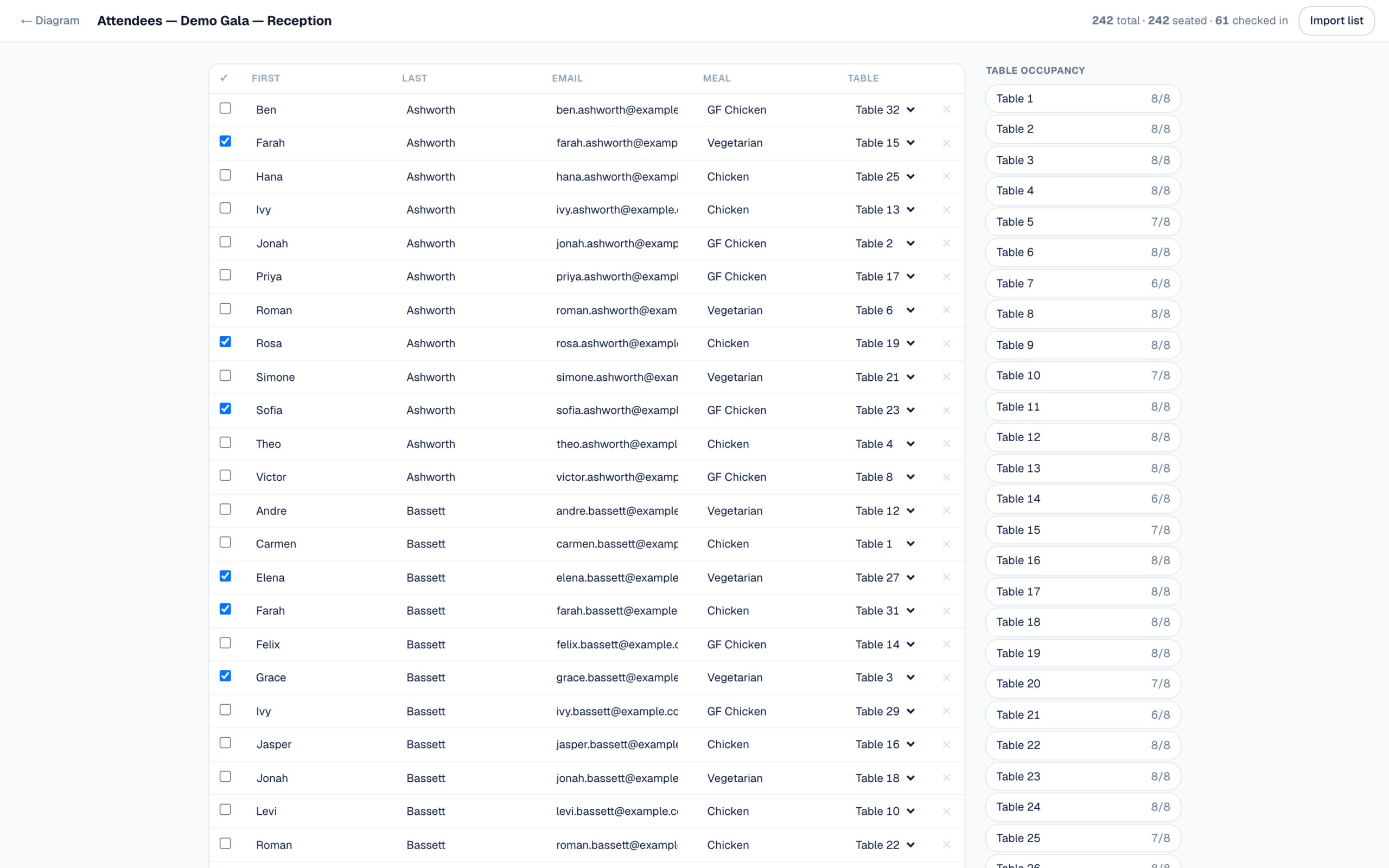
Import the guest list, seat it in one click, and let the plan check itself. EventDiagram builds your seating chart on top of the actual floor plan, so occupancy is measured against the real chairs you drew on each table — not a number you typed into a spreadsheet. A 60″ round seats eight. Put a ninth guest there and you’ll know before the room does. See 53 seated plans, every count measured off the drawing.
Why it’s different
A spreadsheet has no idea what you drew
Most seating charts are built twice. Once as a layout, where the tables live, and again as a list, where the guests live. Nothing connects them, so the only thing checking that Table 14 can actually hold the Bassett party is you, counting rows at eleven at night.
Here the seating chart is the floor plan. Every table you place carries its real chair count, and the guest list reads that number directly. Seat someone and the table’s occupancy moves. Fill a ten-top and it stops you rather than letting you discover it at the door. When the room genuinely runs out of seats, the app says so — and tells you how many guests still need one instead of silently dropping them.
That is the whole idea, and it is why this is seating chart software rather than a seating chart maker that outputs a picture. Change the layout and the counts follow. Nothing to reconcile.
What you get
From spreadsheet to seated, without retyping anything
Export the finished list back out as CSV whenever you want it — names, email, company, meal, table, notes and who checked in — so the caterer, the registration desk and your own records all get the same file.
How it works
Three steps, about ten minutes
Lay out the tables
Draw the room or start from your venue’s real floor plan. Rounds, rectangles, king’s tables and serpentines all come with their true dimensions and a real chair count — which is the number everything downstream depends on.
Bring the guest list in
Paste the spreadsheet or pick the CSV. Check the column mapping it proposes, fix anything it guessed wrong, and import. Guests who already have a table in your file land on that table.
Auto-seat, then adjust
Let it fill the open seats keeping families and companies together, then drag the handful you always move by hand. Occupancy updates as you go, so the plan is right when you stop — not when someone counts chairs.
Then share one link. The venue, the caterer and the client open it in a browser and comment — free, on every plan, with no account to create. Approvals stamped against a version of the plan come with Solo ($9/month) and up. One click switches the same plan to 3D for anyone who can’t read a floor plan but can absolutely read a room.
Who uses it
Weddings, galas, and every banquet in between
Wedding seating charts
Sweetheart and head tables at their real sizes, families kept together automatically, meal counts for the caterer, and a 3D view the couple can actually read. More for planners on the wedding floor plan software page.
Galas & banquet seating
Table assignments for hundreds of guests, sponsor tables kept whole by company, dietary counts by table, and a check-in list that works at the door. No attendee cap waiting to bite you at 150 names.
Conferences & corporate dinners
Seat delegates by organisation, keep a team on one table, and hand the venue a to-scale plan that matches the list exactly. Built for corporate planners who send the same layout to five different vendors.
FAQ
Seating chart questions, answered
Is there a free seating chart maker here?
Yes. The free plan gives you one active diagram with a full guest list, auto-seating, meals and check-in, plus unlimited free viewers and commenters. Exports carry a watermark on Free and are clean from $9/month. Archive an event after it happens and the slot frees up for the next one, so a solo planner running one wedding at a time can genuinely stay on Free.
How do I make a seating chart from a spreadsheet?
Open the guest list on a diagram, paste the spreadsheet straight in or choose a .csv or .tsv file, and confirm the column mapping. It detects a header row, splits a single “Name” column into first and last, identifies the email column by what’s in it, and matches any table column you already have against tables in the plan. Then hit auto-seat for everyone still unseated.
What happens if I have more guests than seats?
It tells you, in plain numbers, instead of quietly overfilling a table. Auto-seat stops when the room is full and reports how many guests still need seats; the per-table occupancy panel shows which tables are at capacity. The fix is on the plan — add chairs to a table or add another table — and the counts update immediately.
Can it keep families and companies at the same table?
That’s exactly what auto-seat optimises for. It groups guests by company, falling back to surname, and looks for the tightest table that still fits the whole group, so parties stay intact rather than being split to make the numbers land. It only splits a group when no single table can hold it.
Is there a limit on guest list size?
No. There are no attendee caps on any plan, including Free — a 500-guest gala seats the same as a 40-person dinner. This is a deliberate difference: Cvent Event Diagramming’s published Free, Standard and Pro tiers cap attendee lists at 150 per list, and only the $320/month Premium tier removes it (as listed August 2026). See the full Social Tables comparison.
Can I track meals and dietary requirements?
Yes. Meal is a first-class column on every guest, so chicken, fish, vegetarian and GF totals are visible at a glance and per table, and they travel with the CSV export you hand the caterer. Free-text notes cover allergies and anything else that doesn’t fit a category.
Does it work for check-in on the day?
Yes. Tick guests in as they arrive, search the list by name as you type, and filter to everyone not yet checked in. Running totals for guests, seated and checked in sit at the top of the screen, and the checked-in state comes through on the CSV export afterwards.
Do the venue and my client need accounts to see the chart?
No. A share link opens in any browser, and the venue, the caterer and the client can view and comment without creating an account or paying anything, on every plan including Free. Recording their approval against a version of the plan is part of the paid workspace, from Solo ($9/month) up. Accounts are only for the people editing the plan.
Coming from another tool? We rebuild your existing layouts from PDFs as part of onboarding — see the tool comparison or the Prismm migration page.
Seat your next event in about ten minutes
Import the list, auto-seat it, and let the floor plan do the counting. Free to start, no credit card, no guest limit.
No credit card required