Training/Building a floor plan
How do I make a site plan for an outdoor event?
Find the property on the satellite map and EventDiagram measures it for you: the scale is computed from the map view rather than read off a picture, the usable ground is traced around the buildings, water and planting, and you land on a to-scale canvas you can drop tents, bars and tables onto.
Indoors, somebody has already drawn the room: there is a floor plan in a sales kit, a PDF from the architect, a capacity chart on a website. Outdoors there is usually nothing. A lawn, a courtyard, a rooftop, a fairway, a parking lot — real event space that nobody ever drew, because it was never a room. A site plan is the drawing of that ground, to scale, with the things you cannot move already on it.
EventDiagram makes one from above. You find the property on the satellite map, it reads the imagery, and you land on a measured canvas you can lay tents, bars, tables and a dance floor onto — the same editor as every other diagram, just with real ground underneath it.
There are two ways in, and they differ in exactly one thing that matters: where the scale comes from. On the map, EventDiagram picks the zoom, so how many feet a pixel is worth is arithmetic and cannot be wrong. From a screenshot, that number has to be read off the picture. Use the map whenever the map can find the place.
Making one from the map
- Open
Storageand clickSite plan from an aerial, next toNew diagram. (The same thing lives inside theNew diagrammodal, if you are already there.) - On the left, under
Find it on the map, start typing an address or the name of the property. Pick it off the list. - The satellite view comes up already framed on the place. Drag to move it; the buttons zoom; double-click zooms in. The pill along the bottom says how much ground you are about to capture.
- Frame the whole site with a little margin and click
Use this view.
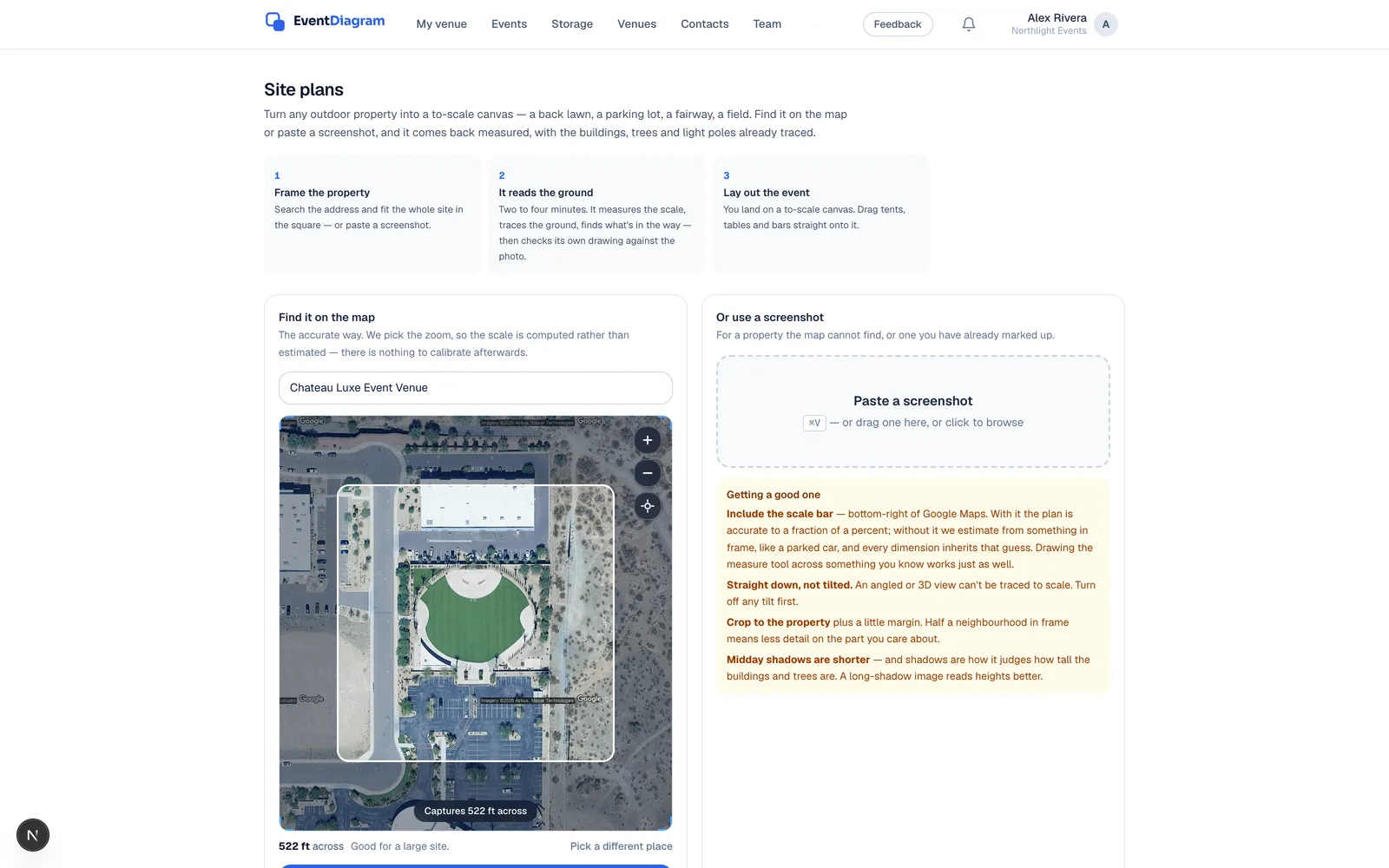
Framing is the one judgement call. Too tight and you clip the ground you need; too wide and the detail on the part you care about gets thin, which the page says out loud as you zoom. Aim to fill the square with the property and a margin of whatever surrounds it.
What “to scale” actually means here
Everything you will do with the finished plan — order a 40 × 60 tent, promise a client 180 seated, tell a rental company the truck can reach the lawn — rests on a single number nobody can see: feet per pixel. So EventDiagram states where that number came from, in words, on the plan itself.
| What it says | Where the number came from | Trust it? |
|---|---|---|
| Exact — from the map view | We chose the zoom, so Web Mercator gives feet per pixel outright. | Yes. Nothing to calibrate. |
| From the map’s scale bar | Read off the scale bar in the corner of your screenshot. | Yes — accurate to a fraction of a percent. |
| Measured in the photo | Read from a measurement you had already drawn on the image. | Yes. |
| Estimated from an object in frame | Inferred from something of known size — a parked car, a tennis court. | Check it. Every dimension inherits the guess. |
| Not set — assumed | Nothing in frame to measure against. | No. Set it before you quote anything. |
The map path always produces the first row. If you ever see one of the last two, fixing it is a fifteen-second job and it is the same job either way: open Site plan & scale on the left rail, draw a line across something you know the length of — a tennis court, a parking bay, the building frontage — type what it really measures, and the whole plan re-scales around it.
What it reads while you wait
The read takes two to four minutes, and the screen tells you what it is doing rather than spinning at you. It happens in two passes:
- It reads the property. It works out the scale, traces the outline of the ground you can actually use, and finds what is standing on it — buildings, water, tree lines, planting beds, light poles, paths.
- Then it checks its own work. A second pass draws that trace back over the photo and re-examines it for anything boxed off, missed or drawn too roughly. This is the pass that stops a curved pool arriving as a rectangle.

Nothing on that screen is on a timer. The findings appear as they land, and the clock is measured against a stated expectation, so a long quiet stretch reads as work rather than as a hang. The two silences are real: each pass thinks for the best part of a minute before it says anything.
What comes back
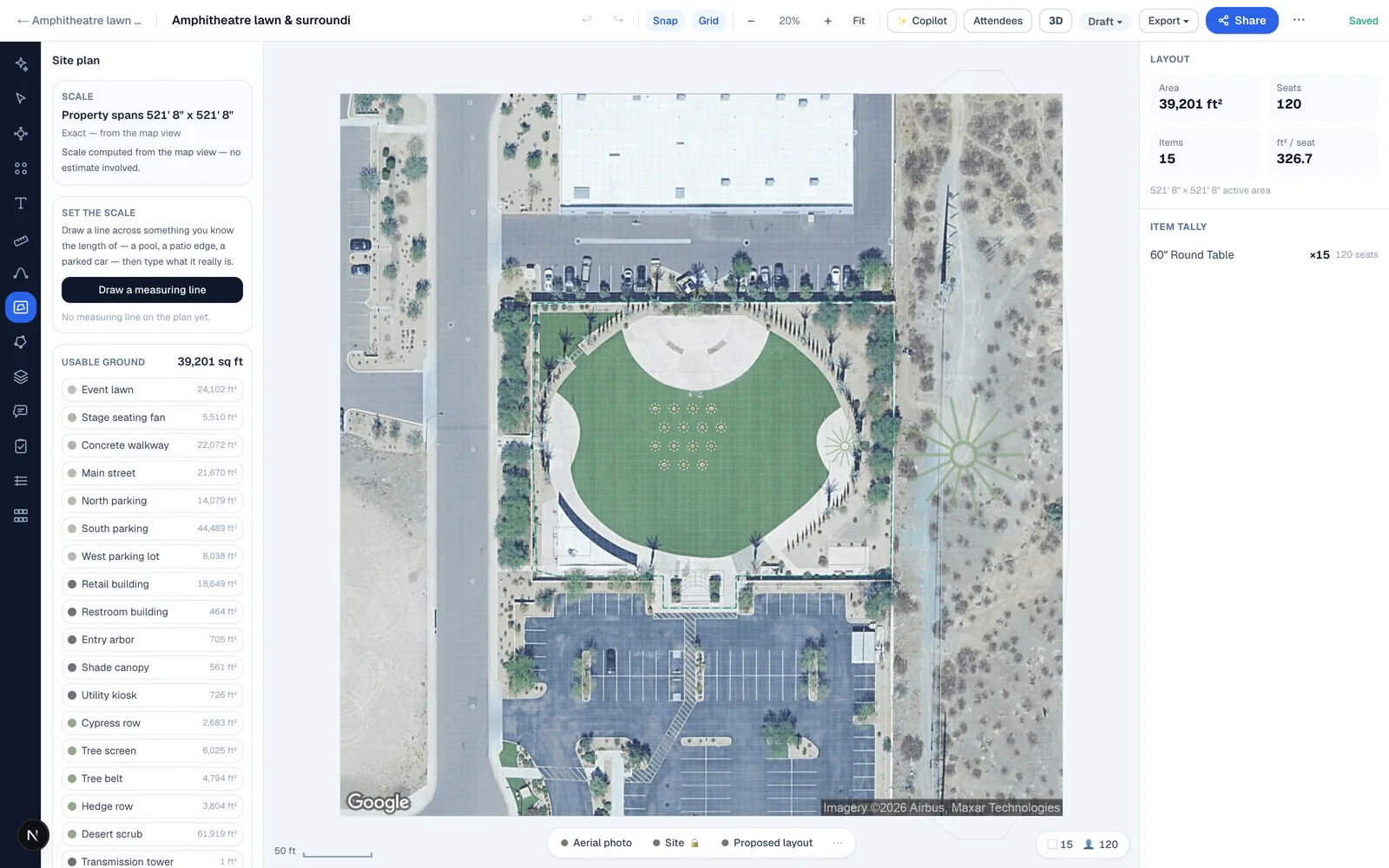
The property itself, to scale. The aerial is the drawing — not a backdrop behind one — so you are looking at the real grass, the real trees and the real parking bays, with the trace laid over it as labelled annotation: the lawn, the plaza, the walks, the palm rows, each one a real shape with a real area. Everything it found is an ordinary object, so you can select, rename, retype and reshape any of it exactly like a table.
You also get an answer to the question that made you look the property up in the first place: what fits. EventDiagram counts by actually laying tables out on the traced ground — 60″ rounds, 72″ rounds, 6 ft banquets and theatre rows — clear of the water, the planting and the buildings, keeping five feet at the edge. Those numbers are lower than square footage divided by a rule of thumb, and that is the point: the pool is genuinely refused.
Laying out the event
From here it is an ordinary diagram and everything works the way it does indoors. Search the catalogue for a Tent, give it the size you would actually be renting, and drop it on the ground — and you get an answer instead of an opinion, because what is underneath it was measured rather than remembered.
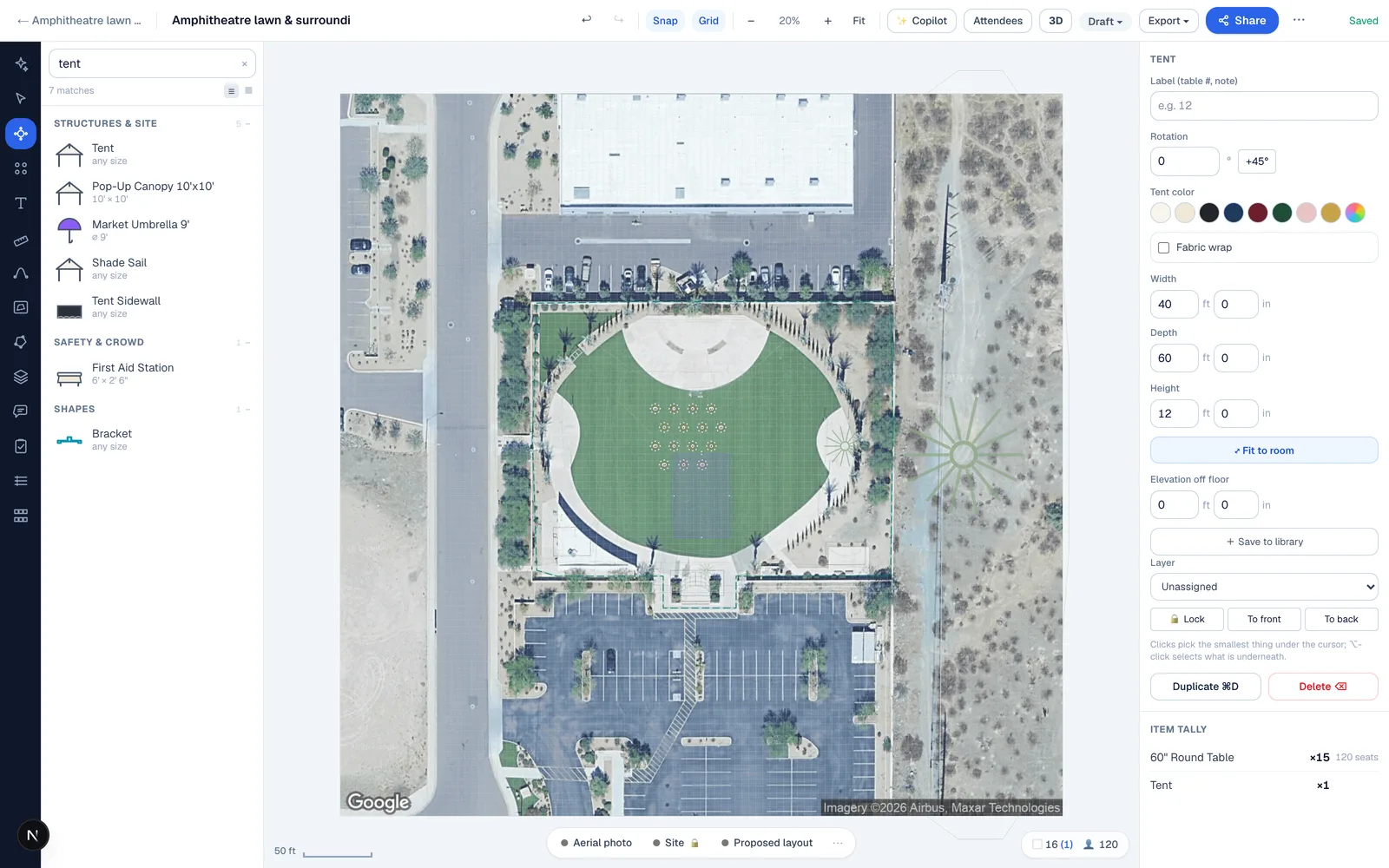
Auto-Fill will seat it, Diagram Check will catch the aisles, the 3D walkthrough will stand you in it, and a share link will put it in front of the client — all unchanged. The only difference is that the room is outdoors.
When to use a screenshot instead
The screenshot path is for a property the map cannot find, a private estate, a site that does not exist yet, or an aerial somebody has already marked up. It works, but you are responsible for the scale, so four things matter:
- Include the scale bar. With it the plan is accurate to a fraction of a percent. Without it we estimate from something in frame and every dimension inherits that guess. A measurement you drew across something you know works just as well.
- Straight down, not tilted. An angled or 3D view cannot be traced to scale. Turn any tilt off first.
- Crop to the property plus a little margin. Half a neighbourhood in frame means less detail on the part you care about.
- Longer shadows read heights better — shadows are how it judges how tall the buildings and trees are, so a midday image is the hardest one to read.
On a Mac the fastest route is ⌘⌃⇧4, which puts the shot straight on the clipboard, then ⌘V into the drop zone. No file, no Downloads folder.
Common questions
Is it free? Previewing any property is free on every plan — you see the finished plan, the measurements and what fits before you decide anything. Keeping a site plan in your workspace is a paid feature, and the page tells you which plan before you spend the three minutes, not after.
Can I use it for a festival, a car park or a golf course? Yes — anything with an overhead view and a boundary. Large sites are where the framing advice earns its keep: capture the part you are actually building on rather than the whole estate.
Does it work for a building? It reads the ground, not the inside of a structure. For an indoor event space, see getting your venue’s floor plans in — a PDF import, drawing from real dimensions, or sending us the plans to convert.
Is the aerial photo kept? Yes — it is the plan. It sits on its own layer, so you can dim or hide it and work against the linework alone, but the default is the photograph, because outdoors it carries things no drawing of a lawn ever would: where the shade falls, where a path has been worn across a corner, which end is gravel. The trace on top is real objects, not marks on a picture, so hiding the imagery loses the view and none of the measurements.
How accurate is it? The scale is exact on the map path. The trace is a reading of a photo, checked by a second pass, and it is a starting point you can edit like anything else — drag a corner, retype an area, delete something that is not there any more.
Related
Updated September 29, 2026 · 26 articles in the knowledge base