Training/Building a floor plan
How do layers work?
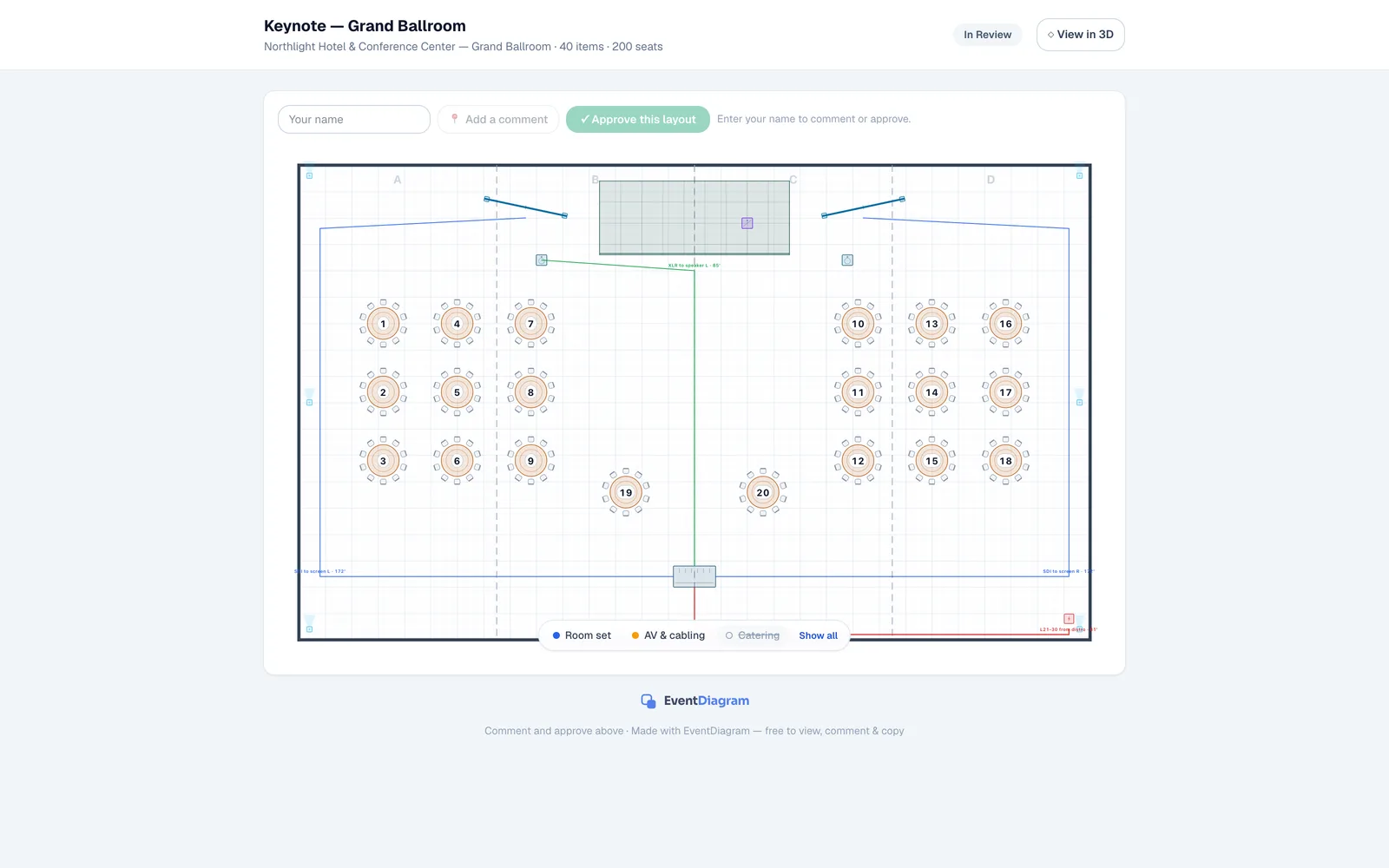
Layers let one diagram serve several audiences: file the room set, the cable plot and catering on their own layers, then show, hide or lock each one. Hidden layers stay out of exports and share links; a copy of a shared diagram arrives with the sender's work on a locked layer.
From the course: Layers · 1:36
A layer is a named group of objects inside one diagram. The banquet captain wants the tables, the production crew wants the cable runs, and the caterer wants neither — layers let a single drawing hand each of them the version they need, without keeping three copies of the room in sync.
Layers are strata of the same setup. A different setup — the ceremony versus the reception, plan A versus plan B — is a separate diagram inside the event, not a layer.
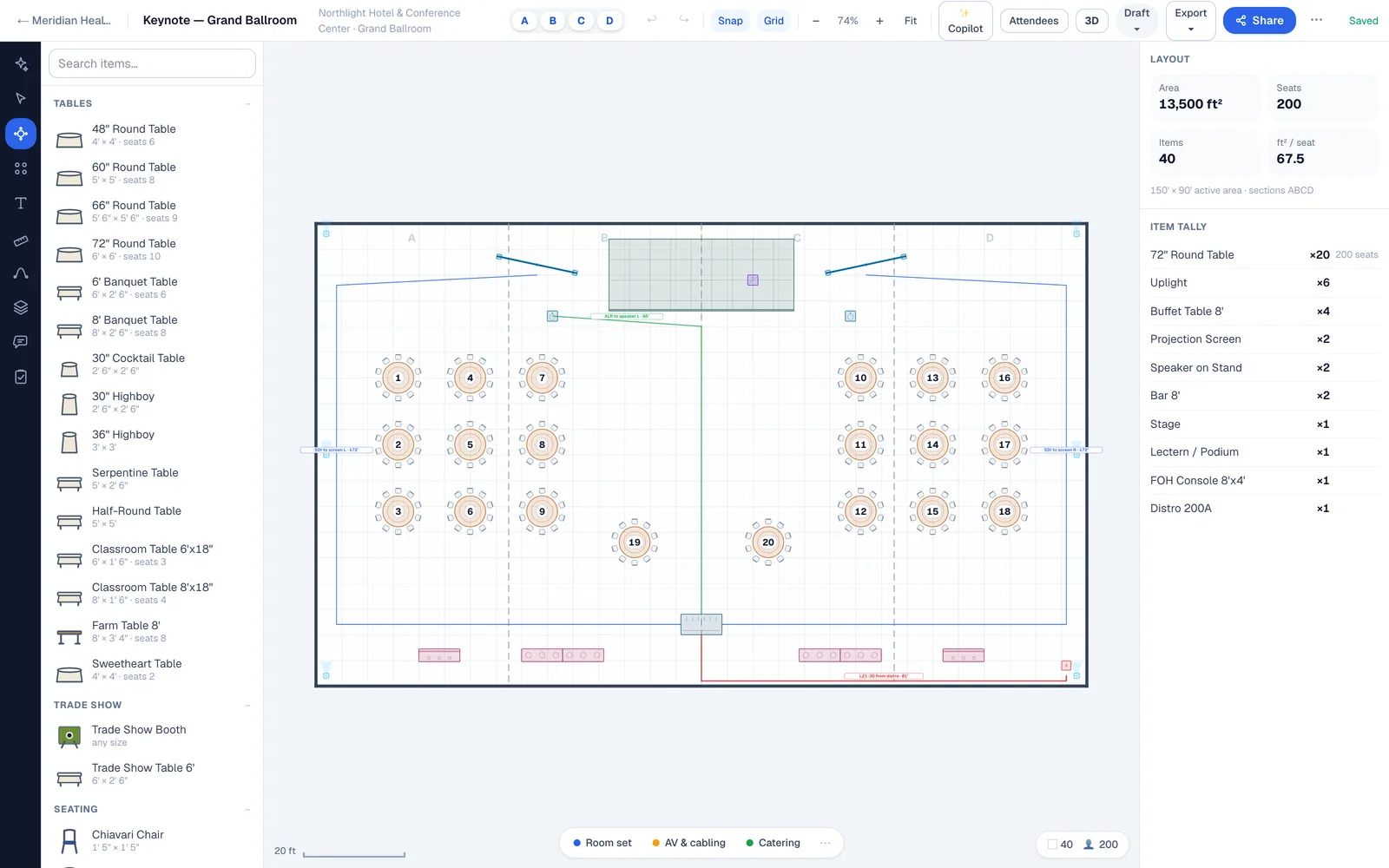
Show and hide
Click a chip to hide that layer; click it again to bring it back. Hold Option (Alt on Windows) and click to see a layer on its own, and Show all puts everything back. Hiding a layer changes nothing about the objects on it — it is a view, and it is saved with the diagram, so the next person to open it sees what you left showing.
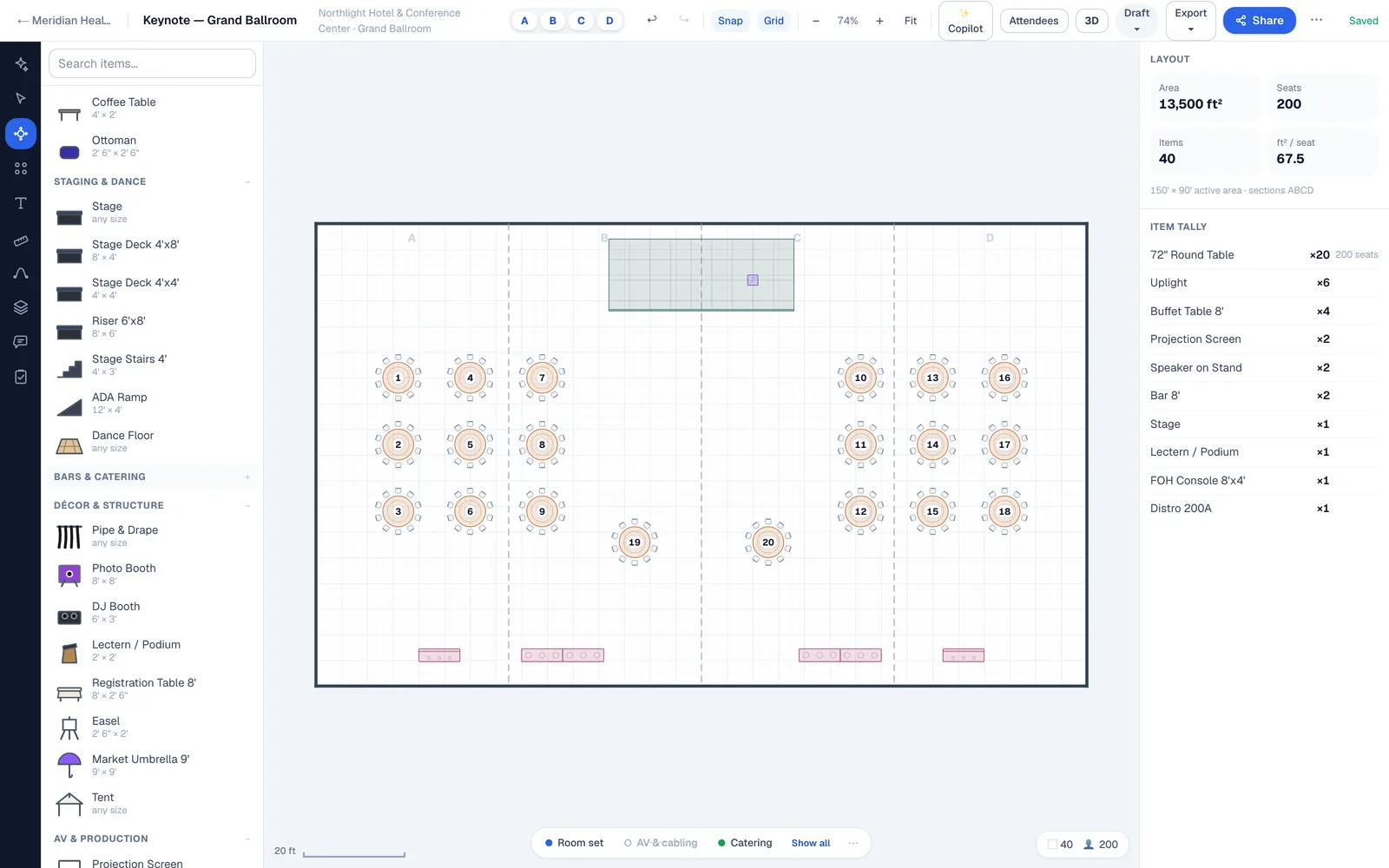
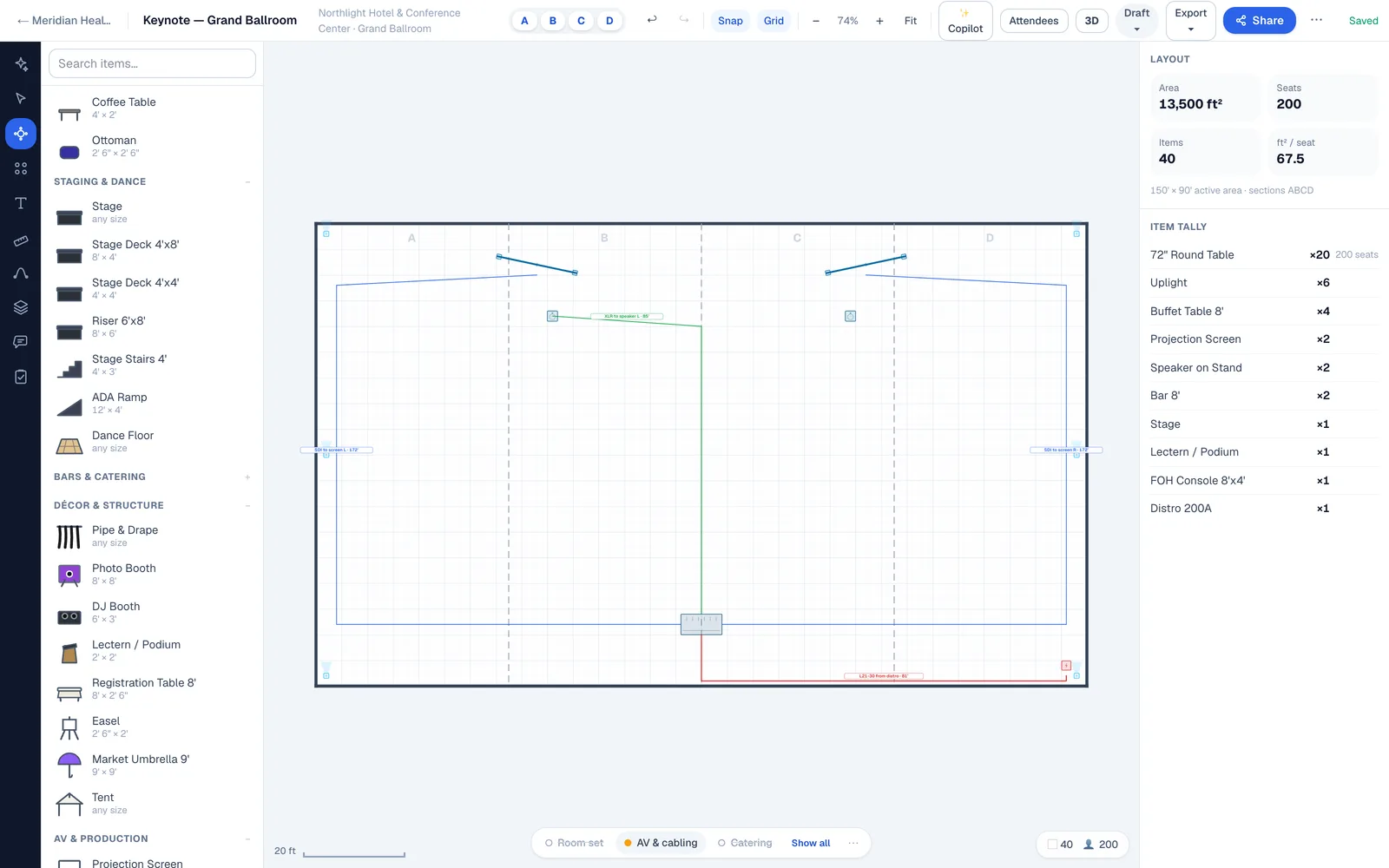
What is hidden stays hidden downstream. PDF, PNG and SVG exports carry only the layers that are showing, and so do the 2D and 3D views behind a share link. Recipients get their own chip bar to toggle with, and their toggles never touch your diagram. The one exception is the rendered flythrough video, which always shows the whole room. Seat counts and Diagram Check still count every object, hidden or not.
The Layers panel
The … chip, or the Layers tool on the left rail, opens the panel. It lists every layer with how many objects it holds, and an Unassignedrow for anything not yet filed. From here you add a layer, rename one with a double-click, and delete one — deleting a layer keeps its objects and moves them to Unassigned.
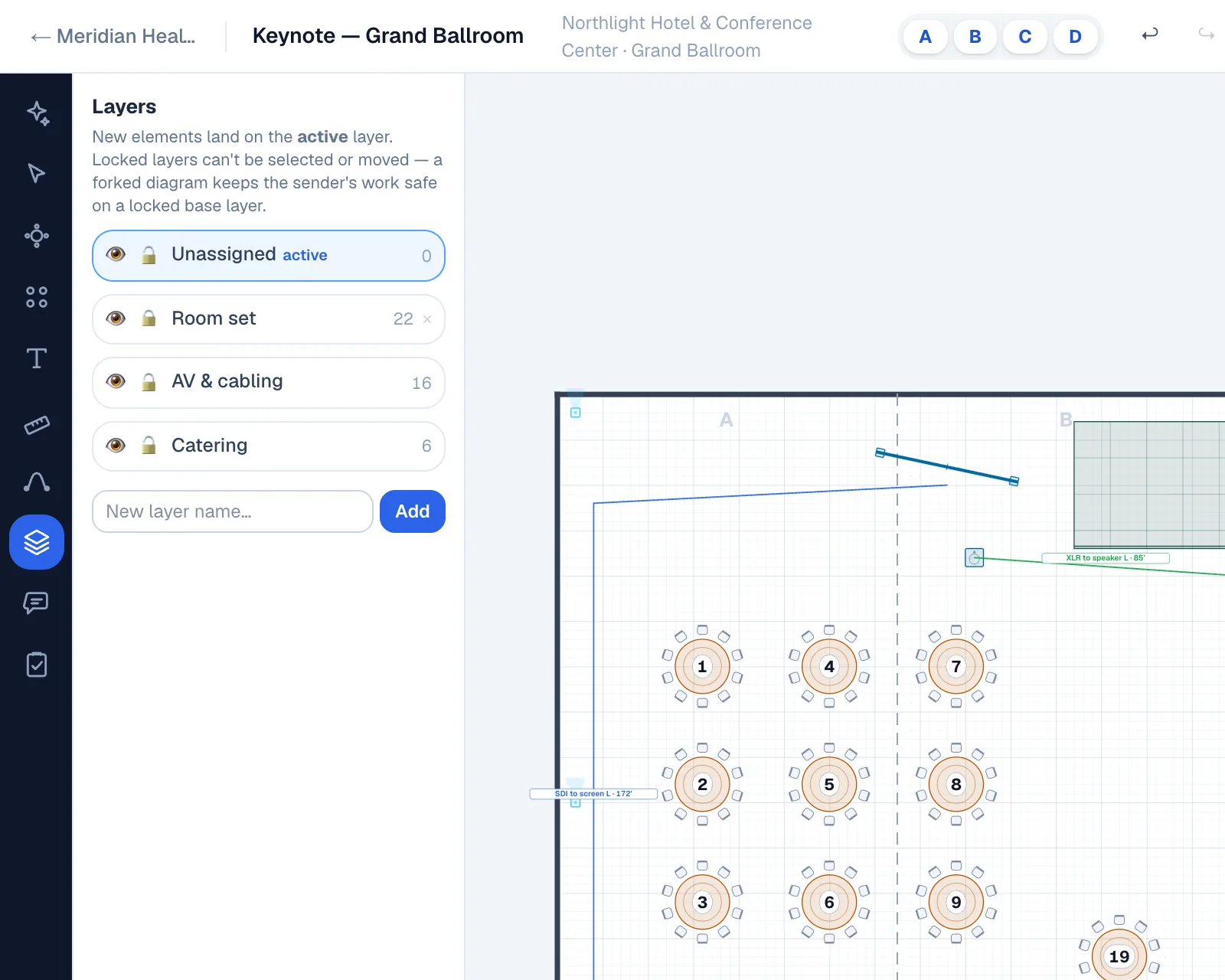
New objects land on the active layer — the highlighted row. Click a layer to make it active before you draw and your work files itself; double-click a chip does the same thing without opening the panel.
Locking a layer makes everything on it inert: it cannot be selected, moved or deleted until the layer is unlocked. That is different from locking a single object from the Inspector, which stays selectable but will not move.
Moving things onto a layer
- Select the object, or drag a marquee around several. A layout template moves as one block.
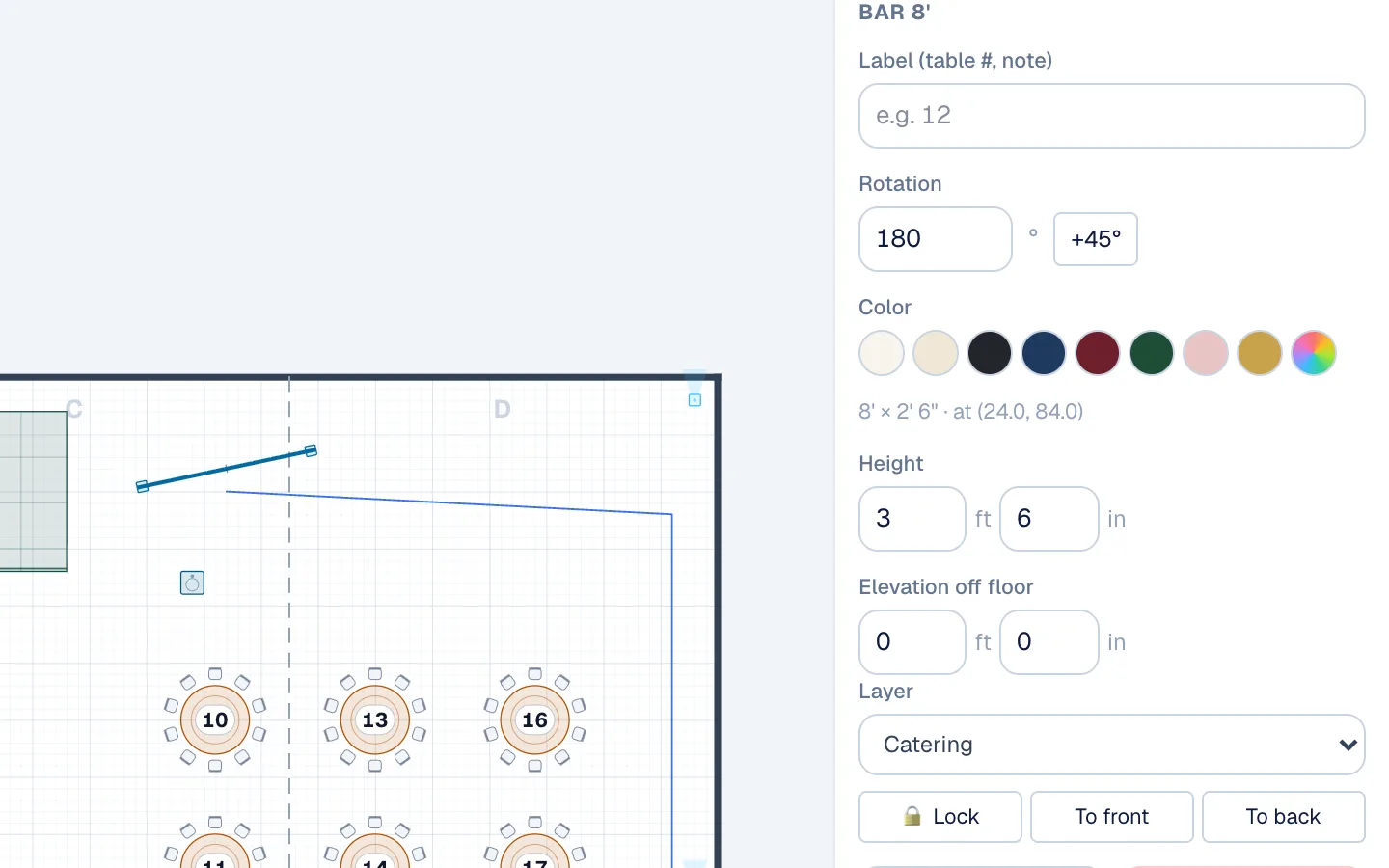
- In the panel on the right, choose the layer from the
Layerdropdown —New layer…creates one and moves the selection onto it in a single step. - Or right-click the selection and use
Move to layer; the Layers panel also offers amovebutton on every row while something is selected.
The AI copilot does the same on request: “put the cabling on its own layer” creates the layer and moves the runs. It will not move or delete anything on a locked layer.
Layers you get without asking
| When | What arrives |
|---|---|
| You take a copy of a diagram someone shared with you | Their work on a locked base layer named after their workspace. You build on top; theirs stays exactly as sent. |
| You import a PDF or image of an existing plan | The rebuilt objects on a locked Imported base layer. |
| You start a site plan from an aerial photo | The photo on its own layer, with a fade slider, so it can be traced over without disappearing. |
Where layers earn their keep
- A/V and production — the cable plot and the rigging on their own layer, printed for the crew and hidden from the client.
- Venues working with outside vendors — lock the room set, let the production company or the florist work on their own layer on top.
- Setup phases — ceremony-to-reception flips inside one space: what moves on one layer, what stays on another.
Layers are available on every plan, including Free.
Related
Updated September 8, 2026 · 16 articles in the knowledge base